Tutorial #1 - Conversion Time Line
(You may stop at any point, depending on where you want to get)
Half Life (Counter-Strike) *.BSP -> World Craft *.MAP -> 3D Studio Max
*.DXF
What you need to know/have:
Remember, you will not need all of these depending what step you will go up to.
-A fairly good knowledge of computers. For example how to use windows explorer/rename/copy/paste
files.
-The free program World Craft (v 1.6 or 3.3).
Download the needed Files:
|
Program
|
File
Name
|
Download
|
Instructions
|
|
World
Craft
|
Version
3.33 worldcraft3.exe
or
Version 1.6 (Shareware)
wc16shar.exe
|
Version
3.33
Version
1.6
|
Install
either one. When you first run it, it will ask to set it up.
You basically only have to set up the textures. To do this go to
Options (preferences) -> Textures tab and add any wad file (or
download one from the internet) This is because the program wants
at least some textures.
|
|
Converter
WinBSPc |
Conversion1.zip
|
Download
|
Open
the zip file and Unzip the whole file to a directory. You must
extract the while zip file because it will create the appropriate
directories.
|
Step 1: Half Life BSP (type of map file)
1. Find a Half Life BSP (for example the smallest polygon count Counter-Strike
map: cs_assault)
2. Make a new folder somewhere on your hard drive that is the name of your
map. Copy and paste the original BSP into the folder.
3. Open winbspc.exe. Choose File->Convert. Find the previously created folder
and open the BSP file copied there. A small window should show up. Choose MAP
and check “best matching texturing” and “no liquid” (I am
still not sure if these help the process, so you can go without them). Click
on Browse to choose the output folder. Select the folder where you have your
BSP file.
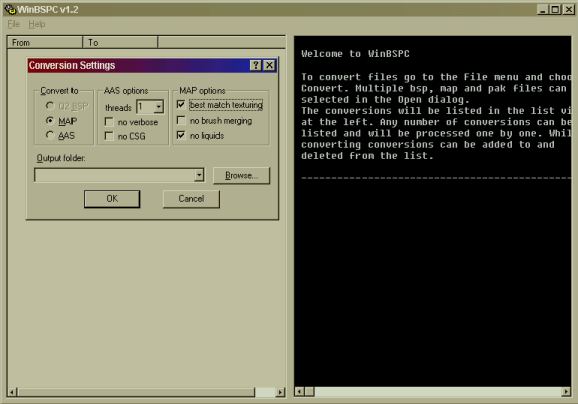
4. Click OK and let the map convert.
Step 2: World Craft Map
1. Now, you should be able to open the map is World Craft. Open World Craft
(v1.6 and v3.3 works for me, I am assuming that you know how to set it up. Be
sure to add some textures in the setup screen) Open the *.map file from your
directory. It should load and at the end you will probably get an error message
that says ## solids could not be opened due to errors.
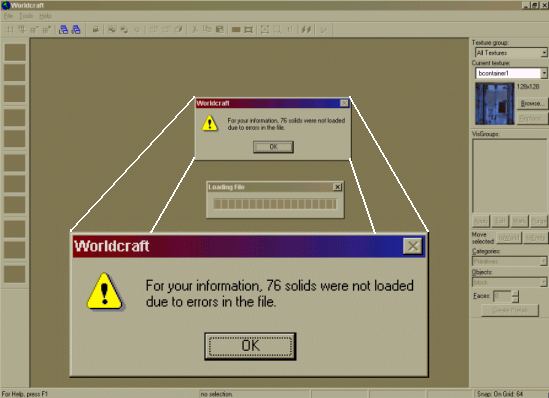
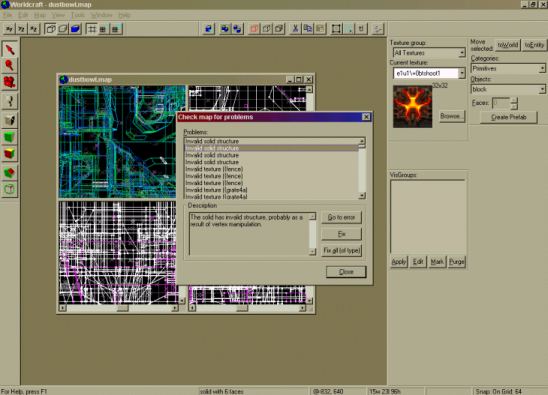
2. Optional Step - (I am not sure if it helps the process) Now choose
MAP->Check For Problems. Click on a Problem and Choose Fix all (of type)
(this means that you will have to click fix all on every type of problem, for
example texture, solid, etc.) Close the window and choose MAP->Check for
Problems. It should say “No Problems Found”. If it did find more problems
just choose Fix all again and repeat the step until no problems are found. If
after several tires it does not work, save the map and reopen it. Then try again.
3. Now choose FILE->export to *.DXF. Name the map name_of_map.dxf
and export it to your directory.
Step 3: Opening in 3d Studio Max
1. Open 3d Studio Max. Choose FILE->Import. Choose DXF in the file type
and go import the DXF file you created in the previous step.
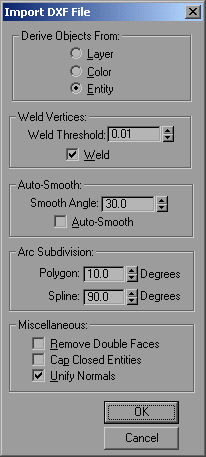
These are the options I choose. I see no difference between Layer and Entity,
but I used Entity. Turn off Auto-Smooth. Check Unify Normals.
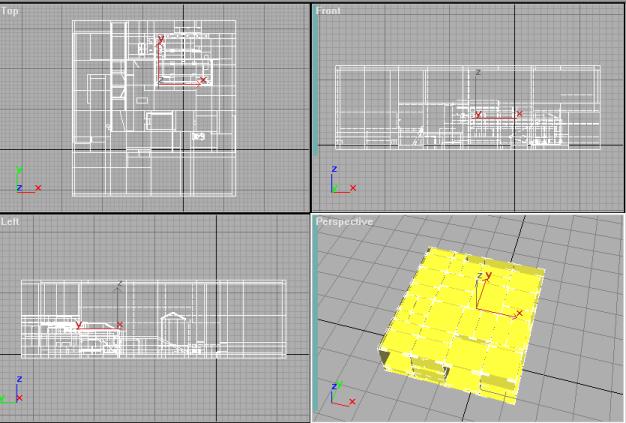
2. The map should load and look something like this.
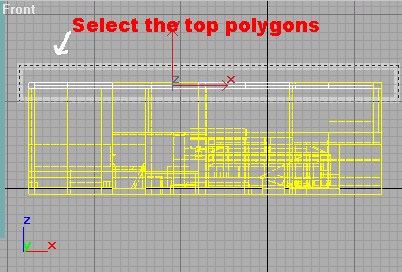
3. Now it is necessary to remove all the extra geometry. In the example of
cs_assault its about 3000 polygons (don't worry it's not that hard). Start by
selecting the top objects to 'uncap' the geometry
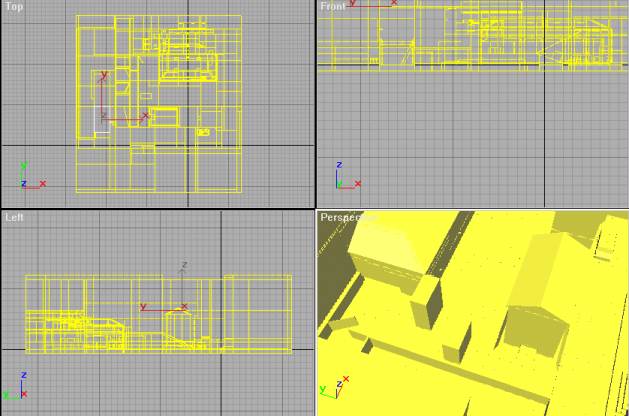
Keep on deleting the polygons you know are not part of the map. This method
needs a bit work, but the geometry is easy to work with because the groups created
are nicely done. After a while, it will take on the shape on the true map.
If in the game the geometry looks too big/small just use the resize button
 to resize it. (I heard 300% bigger works)
That is basically it; you might have to do other things like delete/add/modify
the geometry to fit the new engine's requirements.
(end)
